Right where you already work
No menu bar icon to hunt for, no hot corner to aim at. DropToMove sits in the toolbar of every Finder window: ⌘-drag it there once and it stays.
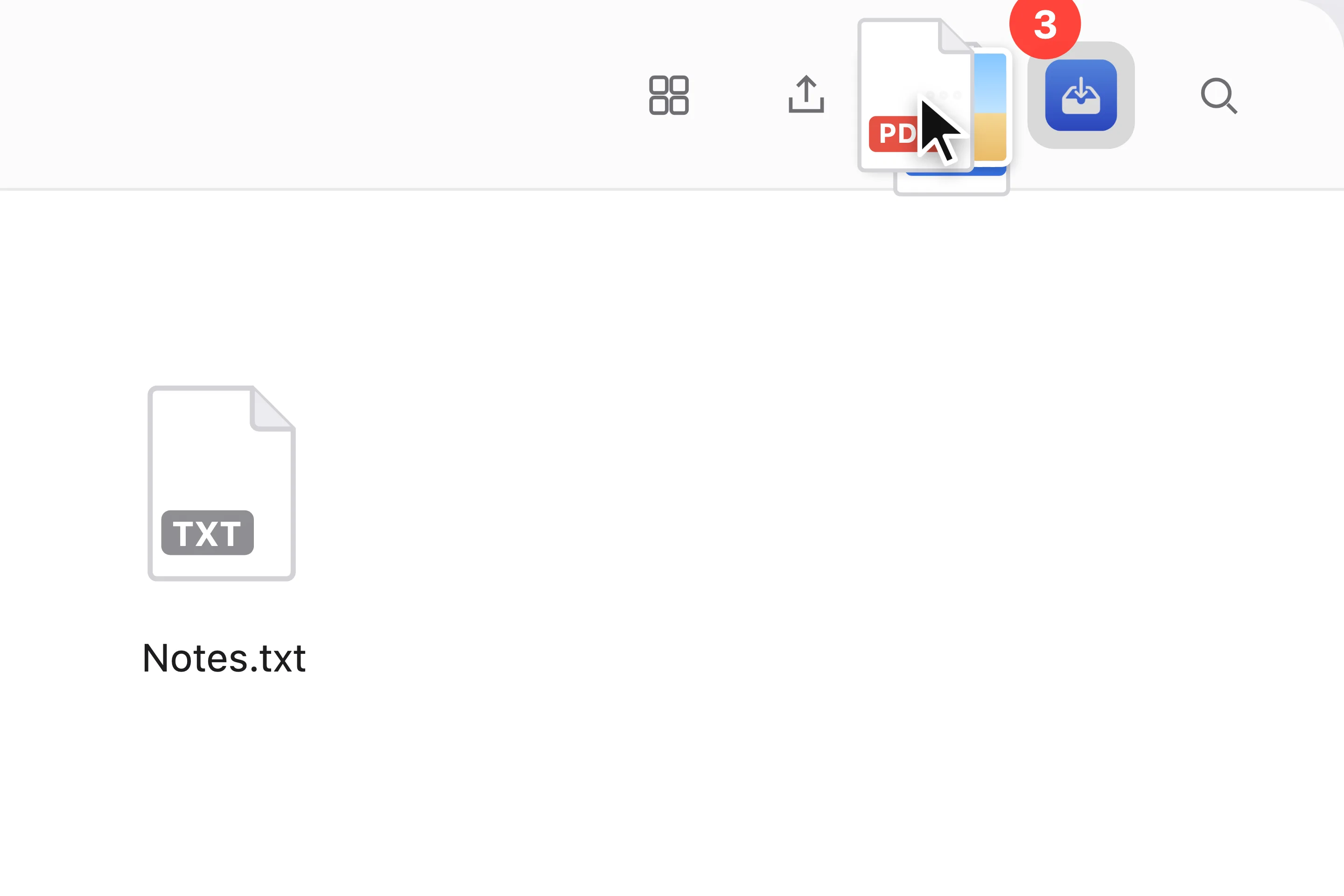

DropToMove lives in your Finder toolbar. Drop files on it and send them anywhere in a single drag, and if you change your mind, ⌘Z puts everything back.
14 days free · macOS 13 or later · Apple Silicon

Select files in any Finder window and drop them on DropToMove. The shelf opens right there.
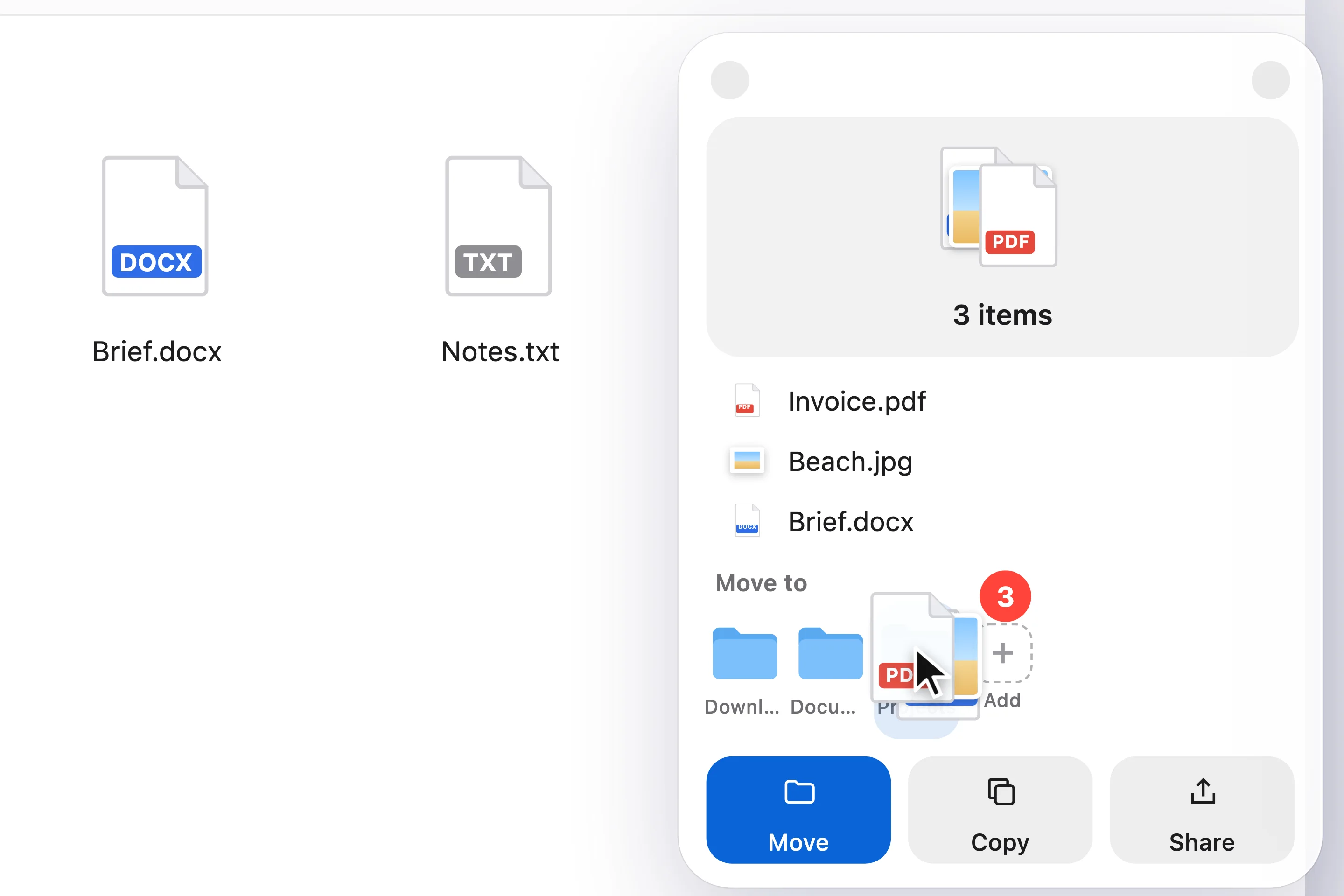
Drag the stack into any folder or onto a favourite on the shelf. Done: they’ve moved.
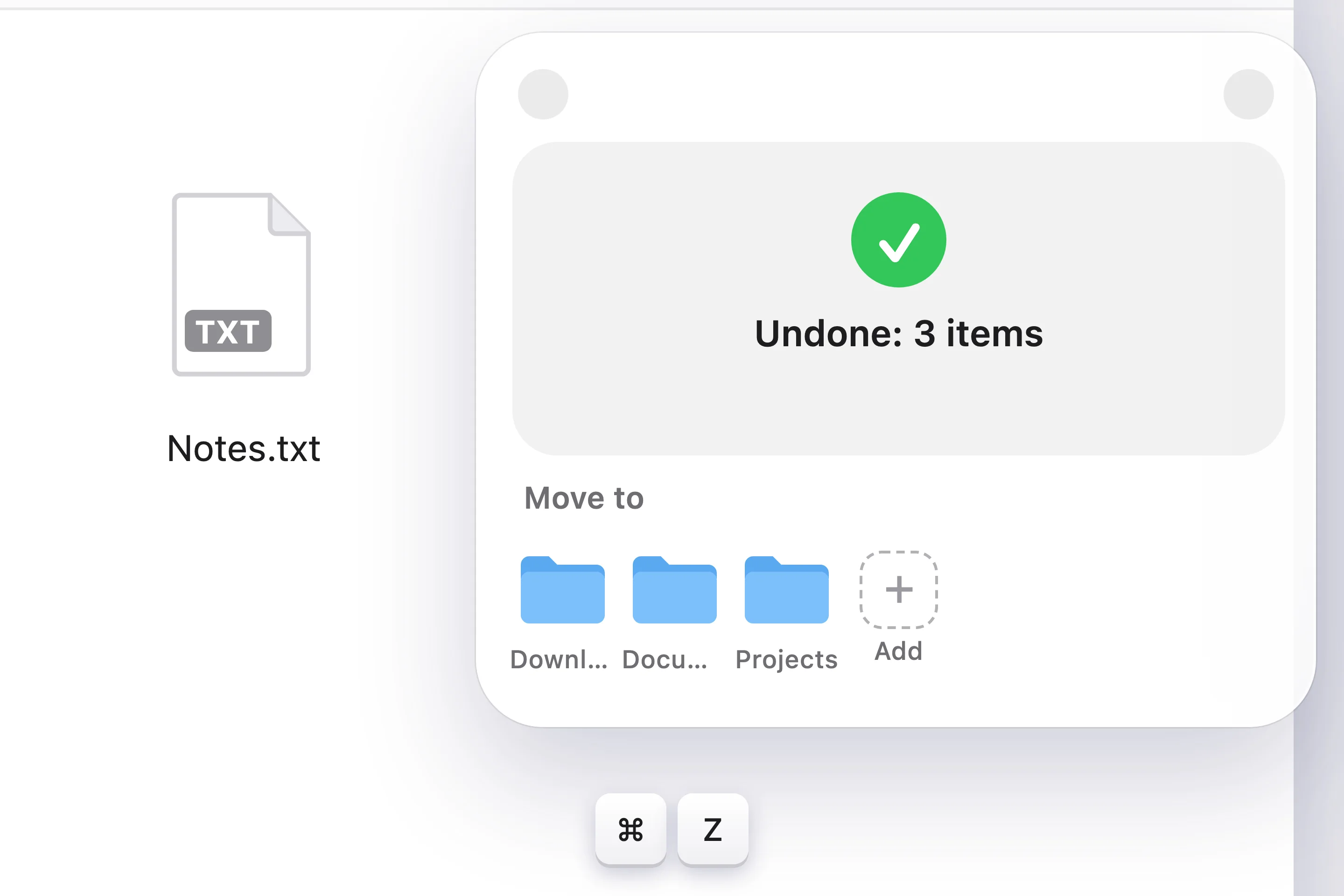
Every move from the shelf can be undone. Files go back exactly where they were.
No menu bar icon to hunt for, no hot corner to aim at. DropToMove sits in the toolbar of every Finder window: ⌘-drag it there once and it stays.
Favourite and recent folders live on the shelf. Drop files on one, or click it to send everything on the shelf. Move, Copy and Share sit right below.
Moved something to the wrong place? ⌘Z brings it back. Files you replace go to the Trash instead of vanishing.⌘Z
No. You pay once and the license is yours.
Open Applications, hold ⌘ and drag DropToMove into the toolbar of any Finder window. DropToMove shows these steps on first launch.
Yes. In DropToMove choose ⋯ → License… → Deactivate on This Mac, then enter the key on the new Mac.
DropToMove keeps working with one file at a time. Folders, undo and the Move, Copy and Share buttons need a license.
Macs with Apple Silicon (M1 and later) running macOS 13 Ventura or later.
14 days, every feature, no card.